

Xylem.com Account Frequently Asked Questions (FAQs)
In an effort to enhance the security of our customer data, we are upgrading the login platform for xylem.com to XylemID - a Single Sign On (SSO) model. Logging in via SSO has major security benefits for our customers and will allow Xylem to provide a streamlined way for customers to access other Xylem systems in the future.
After XylemID is implemented, customers will be prompted to change their password the next time they login. They will also be prompted to verify their identity via a code sent to the email address that is associated with their xylem.com account.
Visit the Sign In page, found in the menu on the upper right of our site navigation. You’ll be prompted to enter your email address and verify your identity.
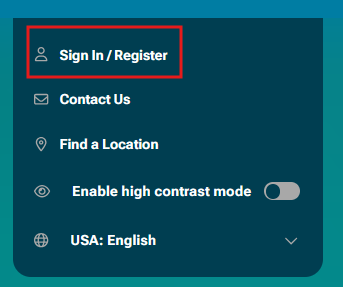
Yes, the sign-in process consists of 3 steps:
- Enter email address (user id)
- Enter password
- Complete MFA
MFA helps to ensure that users are who they say they are. It requires the user to prove their identity by providing at least two pieces of evidence. The first piece of evidence is your password and the second piece is a code sent to your email address or a secondary device that you have established.
All accounts are automatically setup with MFA via their email address by default.
The first time you login with the new SSO process, you will be prompted to set up MFA via alternate routes. You can skip this option by selecting the skip link at the bottom of the screen and only use email verification.
You will have the option to add another MFA option at each login by selecting "Register New Device" on the verification screen.
The three additional verification options for MFA are:
- Use Passkey
- Use an Authenticator App
- Send an SMS to your mobile phone number - if you select this option you will be prompted to add your phone number.


Yes, you can have more than one option. When you Sign In, you’ll be able to select the method you want to use based on what you set up previously.

XylemID reduces password-related vulnerabilities, allows for multi-factor authentication (MFA), reduces phishing attempts and enhances account administration.
After login, nothing else is currently changing about how customers shop on xylem.com.
Select the Sign In / Register link in the menu on the upper right of the xylem.com navigation. Then select the option to Register for a new account. You will be prompted to select a Product catalog during the registration process and your account information will be routed internally for approval. Not sure which option to select? Please reach out to your primary Xylem contact.
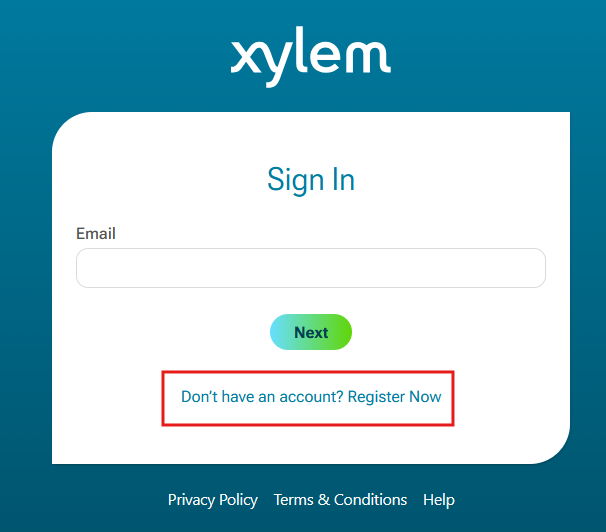
Select the Sign In / Register link in the menu on the upper right of the xylem.com navigation. Enter your email address on the first screen and on the password screen select the Forgot Password link. This will initiatiate the process to create a new password by sending a code to validate your information.
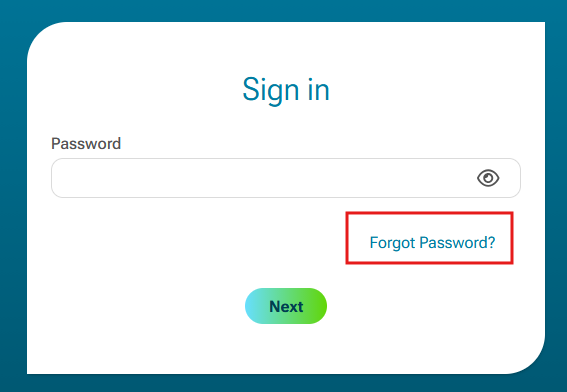
Validate that you are not using an old password that is stored in your browser.
Please try refreshing your browser and start the sign in or registration process again. Thank you for your patience as we launch this new process!
If you continue to get error messages, please contact your local Xylem contact for support. If you need additional assistance, please contact our support team.
Having trouble with your XylemID account? Please reach out to your local customer manager. If you need additional technical support, please contact our support team.